
ConnectUC is the app that puts a person's office extension on their mobile phone or computer. With it they make and receive calls from their office number, wherever they are.
Activating ConnectUC for a person has two parts:
Part | Who does it | What is done |
1. Prepare the user | The Office Manager, in the PBX Portal | Give the user a scope that may sign in, a login name, an e-mail address and a password. |
2. Install and sign in | The user | Download ConnectUC, install it, and sign in with the login name and password. |
The screenshots show a sample organization with made-up names; your own pages will look different.
Before you start: the user's scope
A user's scope decides what the user may sign in to. To use ConnectUC, an end user must have the scope Simple User or Basic User.
Scope | Can use ConnectUC | Meaning |
Basic User | Yes | A user with the normal user functions. Choose this for most people. |
Simple User | Yes | A user with voicemail only. |
No Portal | No | The user cannot sign in to anything: not to ConnectUC, and not to the PBX Portal. |
A user with the scope No Portal cannot use ConnectUC, even with the right login name and password. Change the scope first, as described in the next section.
An Office Manager has a higher scope and can use ConnectUC too.
Part 1: Prepare the user (Office Manager)
You set four things for the user: the e-mail address, the login name, the scope and the password. All four are on one page.
Open the user
- Sign in at https://www.phonesystemadmin.com with the same login and password as the GazelleTel Hosted PBX portal.
- In the menu on the left, select PBX Settings, then Users.
- Find the user in the list. The list shows each user's e-mail address, login name and scope, so you can see at once what is missing.
- Select Edit on the user's line. The user's settings open under the line.
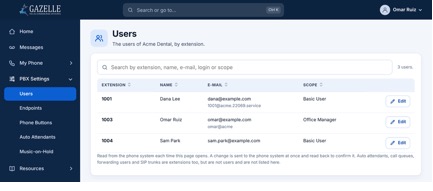
Set the e-mail address
- Under Name and e-mail, type the user's e-mail address in E-mail address.
- Select Save name and e-mail.
The e-mail address matters for two reasons: it is where a code is sent when the user has forgotten their password, and it is where voicemail sent by e-mail goes.
Set the login name and the scope
- Under Sign-in, type the login name in Login name.
- In Scope, choose Basic User or Simple User.
- Select Save login and scope.
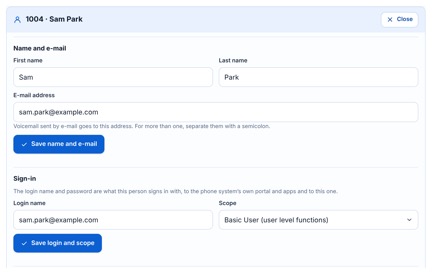
We recommend that the login name is the user's e-mail address, for example sam.park@example.com. People remember their e-mail address, and it is different for every user. A login name that the phone system made by itself looks like 1004@yourcompany.22069.service: it works, but it is hard to remember and to type on a phone.
The login name is what the user types to sign in to ConnectUC and to the PBX Portal. If you change it, tell the user: the old login name stops working.
Set the password
- Under Change password, type the new password in New password and again in New password again.
- Select Change password. The page confirms: "The password for 1004 (Sam Park) was changed."
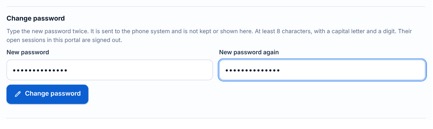
The password needs at least 8 characters, with a capital letter and a digit. It is sent to the phone system and is not kept or shown in the portal, so note it before you save.
Tell the user
Give the user their login name and password, and this article for Part 2. Give the password in person or by telephone, not in the same e-mail as the login name. Ask the user to change the password to one of their own after the first sign-in, under My Profile in the PBX Portal.
If you cannot change the user
What you see | Reason |
There is no Edit button on any line, or the button says View | Changing users is not switched on for your organization. Ask GazelleTel support to make the change, or to switch it on. |
The user is an Office Manager | An Office Manager cannot change another Office Manager. Ask GazelleTel support. |
The Scope list cannot be changed for this user | The user has a special scope that GazelleTel set, for example for a call center. You can still set the login name, e-mail address and password. |
Part 2: Download and install ConnectUC (user)
ConnectUC is free to download. Install it on your mobile phone, on your computer, or on both. You sign in to all of them with the same login name and password.
The easiest way to the downloads is the PBX Portal: sign in at https://www.phonesystemadmin.com with your login name and password, and select Applications in the menu on the left. This also proves that your login name and password work.
On an iPhone, iPad or Android phone
- In the PBX Portal, select Applications, then ConnectUC Mobile.
- If you are reading the page on a computer, point your phone's camera at the code for your phone: iPhone and iPad or Android. If you are reading the page on the phone itself, tap Open in the App Store or Open on Google Play.
- In the store, install the app. It is called ConnectUC, by ConnectUC, LLC.
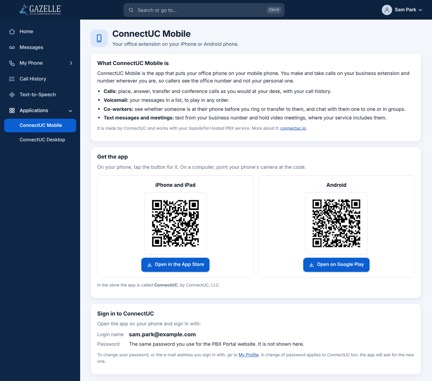
Without the portal: open the App Store or Google Play on your phone, search for "ConnectUC" and install the app of that name by ConnectUC, LLC.
On a Windows PC or a Mac
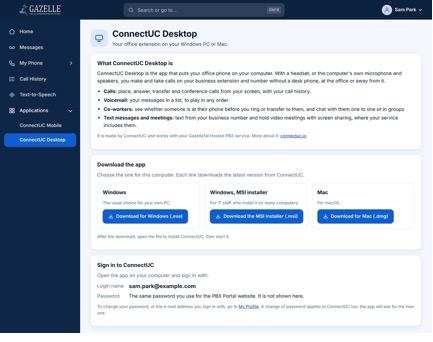
- In the PBX Portal, select Applications, then ConnectUC Desktop.
- Select the download for your computer:
Button | For |
Download for Windows (.exe) | Your own Windows PC. This is the usual choice. |
Download the MSI installer (.msi) | IT staff who install ConnectUC on many Windows computers. |
Download for Mac (.dmg) | A Mac. |
- When the download has finished, open the downloaded file and follow the steps on the screen. On Windows, if a security message asks whether to run the file, allow it.
- Start ConnectUC.
For calls on a computer you need a microphone and speakers. A headset gives the best sound.
Part 2, continued: Sign in to ConnectUC (user)
- Open ConnectUC. It shows a sign-in screen.
- Type your login name. Type it exactly as your Office Manager gave it to you; if it is your e-mail address, type the whole address.
- Type your password.
- Sign in.
- The first time, the app asks for permissions, such as the microphone and notifications. Allow them. Without the microphone nobody can hear you, and without notifications the app cannot show you an incoming call.
Not sure of your login name? In the PBX Portal, the pages Applications > ConnectUC Mobile and ConnectUC Desktop show it under Sign in to ConnectUC. The password is not shown anywhere: it is the same password you use for the PBX Portal.
Check that it works
- Call a coworker's extension from ConnectUC, or call your own mobile number. The person you call should see your office number.
- Ask a coworker to call your extension. ConnectUC should ring.
Your password later
To do this | Do this |
Change your password | In the PBX Portal, select your name at the top right, then My Profile. The new password applies to ConnectUC too: the app will ask for it. |
Sign in after you forgot your password | On the PBX Portal sign-in page, select Forgot your password?. A code is sent to the e-mail address on your user. If that does not work, ask your Office Manager to set a new password. |
If it does not work
Problem | Likely reason | What to do |
ConnectUC does not accept the login name and password | A typing mistake, or an old login name | Try the same login name and password at https://www.phonesystemadmin.com. If they work there, type them again in ConnectUC, with care for capital letters. If they do not work there either, ask your Office Manager to check the login name and set a new password. |
The login name and password are right, but the user still cannot sign in | The user's scope is No Portal | The Office Manager changes the scope to Basic User or Simple User under PBX Settings > Users (Part 1). |
ConnectUC asks for the password again | The password was changed | Type the new password. |
The other person cannot hear you | The microphone is not allowed | In the settings of your phone or computer, allow ConnectUC to use the microphone. |
ConnectUC does not ring | Notifications are not allowed, or the app is signed out | In the settings of your phone or computer, allow notifications for ConnectUC, and check that you are signed in. |
You cannot find the app in the store | There are apps with similar names | Use the buttons or codes under Applications > ConnectUC Mobile in the PBX Portal. The app is called ConnectUC, by ConnectUC, LLC. |
Getting help
Contact GazelleTel support at Support@GazelleTel.com or 818-493-7500. Tell us the user's name and extension, whether it is the mobile or the desktop app, and what the app showed. Do not send us a password.
Related articles: Manage your users in the PBX Portal (Office Managers) and How to access the GazelleTel Phone System Admin portal.