
With Text-to-Speech you type the words of a recorded message and the portal speaks them in a natural voice. Nobody has to record anything by telephone. You listen to the result, change the words until it sounds right, and then put it on the phone system.
An Office Manager can make these messages for the whole organization: voicemail greetings and recorded names of users, the messages of auto attendants, and the intro greetings and voicemail greetings of call queues. Every earlier version of a message is kept and can be brought back.
This article is for Office Managers. The screenshots show a sample organization with made-up names; your own pages will look different.
Open the Text-to-Speech menu
- Sign in at https://www.phonesystemadmin.com with the same login and password as the GazelleTel Hosted PBX portal.
- In the menu on the left, select Text-to-Speech. The menu opens and shows two pages.
Page | What it is for |
Greetings | Make, listen to and publish the recorded messages of your organization. This is where you work most of the time. |
Script review | Read the words of every message on one page, download them, and change the voice of many messages at once. |
If the menu Text-to-Speech is not there, it is switched off for your organization. Ask GazelleTel support.
The Greetings page
The left side of the page lists who a message can belong to, on three tabs. Each tab shows how many there are.
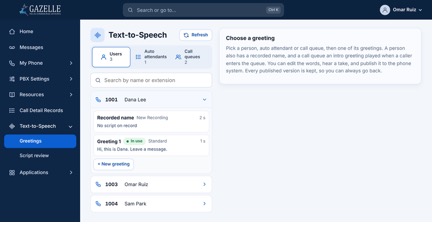
Tab | What it lists | Messages each one has |
Users | The people of your organization | A Recorded name, and one or more voicemail greetings (Greeting 1, Greeting 2 and so on) |
Auto attendants | Your auto attendants | The Main greeting, and one message for each option that opens a menu or plays a message |
Call queues | Your call queues | An Intro greeting, played once when a caller enters the queue, and voicemail greetings |
Select a person, an auto attendant or a call queue to see its messages. Each message shows its name, its length in seconds and the first words of its script.
What a message shows | Meaning |
In use | A person can have several voicemail greetings. This is the one callers hear now. |
Not set | There is no recording here yet. |
No script on record | There is a recording on the phone system, but it was not made here, so the portal does not know its words. You can still play it and replace it. |
The search box above the list finds a person, auto attendant or call queue by name or extension. Refresh reads the lists from the phone system again.
Make a message
Making a message has two stages. First you generate a take and listen to it; this changes nothing for your callers. Then you publish the take, and callers hear it.
- On the Greetings page, select the person, auto attendant or call queue, then the message you want to make or replace. For a new voicemail greeting, select + New greeting (for a call queue: + New voicemail greeting). The message opens on the right.
- Under Greeting name, type a short label, for example "Away from desk". It is how the message is named in lists. If you leave it empty, the first words of the script are used.
- Under Voice, choose a voice. ▶ Hear this voice plays a short sample.
- Type the words in the box, exactly as they should be spoken. The counter under the box shows how many characters you have used.
- Select Generate audio. After a few seconds the page says "The take is ready. Listen to it below."
- Under Listen, then publish, play the take.
- If something does not sound right, change the words or the voice and select Generate audio again. Repeat until you are satisfied.
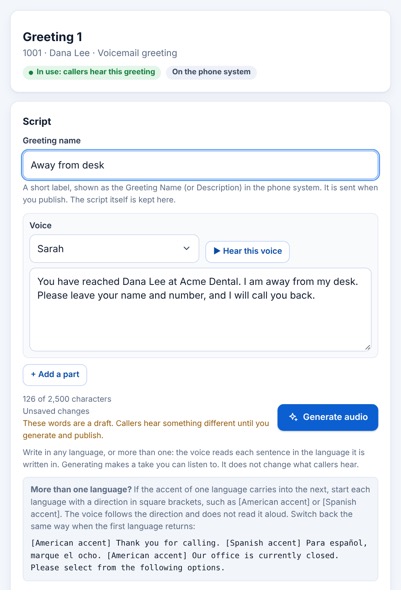
The top of the message shows its state: On the phone system when a recording is there now, or Not on the phone system yet for a new message. While your words differ from what callers hear, the page says "These words are a draft."
More you can do in the script
To do this | Do this |
Use a second voice, or put a pause in the message | Select + Add a part. Each part has its own voice and its own words. Under Pause between parts, choose No pause, Short, Normal, Long or Very long. Remove part takes a part out. A message can have up to 6 parts. |
Write in another language | Type the words in that language. The voice reads each sentence in the language it is written in, so English and Spanish can be in one message. |
Stop the accent of one language carrying into the next | Start each language with a direction in square brackets, for example: [American accent] Thank you for calling. [Spanish accent] Para español, marque el ocho. The voice follows the direction and does not read it aloud. |
Use a recording made somewhere else | Select Use a recording instead and upload a WAV or MP3 file. You can type what it says, so that the words are on record. Select Add the recording as a take; it is then listened to and published like any other take. |
Limits
- A message can have up to 2,500 characters.
- A message can be generated up to 20 times in one hour. If you reach the limit, wait and continue later.
- A take that is never published is deleted after 7 days.
Publish the message
- Under Listen, then publish, select Publish to the phone system.
- The page asks, for example: "Publish version 2 to Greeting 1 on 1001? It replaces what is there now, and callers hear it straight away." Select Publish now.
- Wait for the message "Published. Callers now hear version 2."
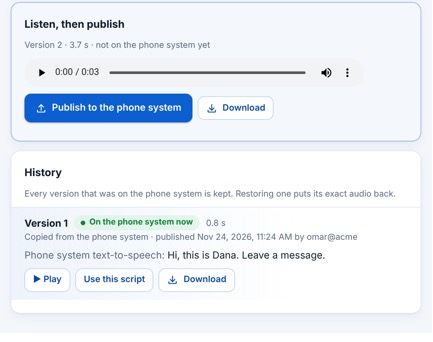
The portal sends the recording to the phone system and then checks that the phone system really holds the new recording. Only then does it say Published. Download saves the take as a file on your computer.
Where each kind of message is heard
Message | Who hears it, and when |
Voicemail greeting of a person | A caller who reaches that person's voicemail. If the person has several greetings, callers hear the one marked In use. |
Recorded name of a person | Wherever the phone system says the person's name, for example in a dial-by-name directory. |
Main greeting of an auto attendant | Every caller who reaches that auto attendant. |
Menu greeting or message of an option | A caller who presses that key in the auto attendant. |
Intro greeting of a call queue | A caller who enters the queue, once, before the hold music. |
Voicemail greeting of a call queue | A caller who reaches the queue's voicemail. |
A person with several voicemail greetings
Only one greeting of a person is in use at a time. When you publish a greeting that is not the one in use, the page offers a tick box: "Also make Greeting 2 the greeting callers hear." Tick it if callers should hear the new greeting. Later, Make this the greeting in use at the top of any greeting switches to it. This way a person can keep an everyday greeting and an out-of-office greeting and switch between them.
Auto attendants
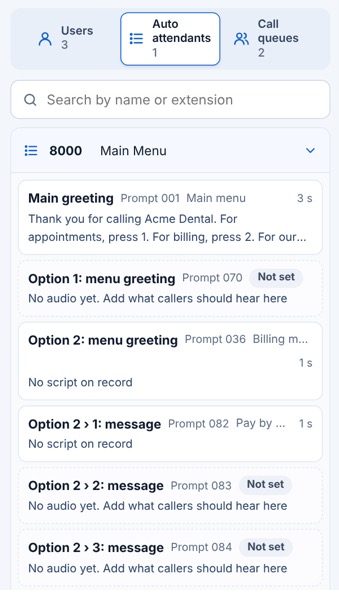
The keys of an auto attendant, and what each key does, are set under PBX Settings > Auto Attendants. That page can also record each greeting. Every option that plays a message or opens a menu appears here too, so you can use whichever page you prefer; the recordings and their history are the same.
Call queue intro greetings
If callers do not hear a new intro greeting, or can skip it, a setting of the queue on the phone system decides that. Ask GazelleTel support to check the queue.
Go back to an earlier version
Every version of a message that was ever on the phone system is kept under History, at the foot of the message, with its words, its voice, who published it and when. The recording that was there before anybody used the portal is kept too, as version 1.
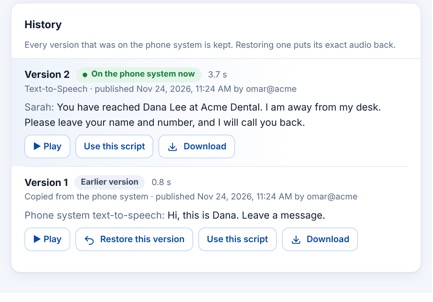
Button | What it does |
▶ Play | Plays that version. |
Restore this version | Puts that exact recording back on the phone system. The page asks first, and callers hear it straight away. |
Use this script | Copies the words of that version into the script box, so that you can change them and generate a new take. |
Download | Saves that version as a file on your computer. |
The version callers hear now is marked On the phone system now. Restoring is recorded as a new version, so nothing is ever lost from the history.
If somebody changes a message outside the portal, for example by recording it from a telephone, the portal notices the next time you open the message and offers to copy that recording into the history.
Script review: all your words on one page
Select Text-to-Speech, then Script review. The page lists every message the portal manages for your organization.
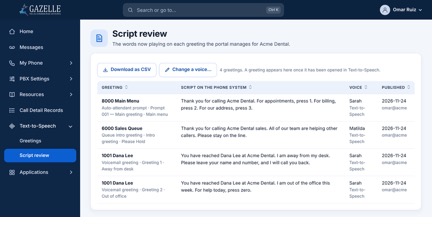
Column | Meaning |
Greeting | Who the message belongs to, what kind of message it is and its name. |
Script on the phone system | The words callers hear now. |
Voice | The voice it was made with. |
Published | The date it was published and by whom. |
A message appears here once it has been opened on the Greetings page. Select a column heading to sort. Download as CSV gives you the list as a file for Excel or Google Sheets, for example to proofread all your messages or to hand them to a translator.
Change the voice of many messages at once
Use this when your organization wants one voice everywhere, or when a voice is withdrawn.
- On Script review, select Change a voice….
- Under Voice in use now, choose the voice to replace. The list shows how many messages use each voice.
- Under New voice, choose the voice to use from now on.
- Select Show greetings. The page lists every message that uses the old voice, with a tick box each.
- Untick any message that should keep its voice.
- Select Change the voice and publish.
Each ticked message is generated again with the new voice and published, one at a time, and the page shows the result beside each. The words stay the same. Callers hear the new voice as soon as a message is published. Every message keeps its history, so any of them can be restored afterwards.
A message that was changed outside the portal, or that has a draft you have not published, is skipped, and the page says why.
Good to know
Writing words that sound right
The voice reads what you type, so write for the ear.
- Use short sentences. A full stop gives a clear pause; a comma gives a short one.
- Write a menu the way a caller needs it: first what, then the key. "For appointments, press 1."
- Always listen before you publish. If a name, a street or an abbreviation is said wrongly, write it the way it sounds, or spell an abbreviation out, then generate again.
- Check numbers by ear. Listen to how telephone numbers, times and dates are read. If one is read wrongly, write it in words.
- Keep it short. Callers remember three or four choices. A long greeting makes them wait.
- If one word is always said wrongly in your messages, tell GazelleTel support. We can set a fixed pronunciation for that word for your whole organization.
Other things to know
- Generating changes nothing for callers. Only Publish to the phone system, Restore this version and Change the voice and publish change what callers hear, and each of them asks first or says so.
- A published message is heard straight away. There is nothing to restart.
- Your users can make their own greeting. A user who is not an Office Manager does not have the Text-to-Speech menu. They make and choose their own voicemail greeting and recorded name under Messages > Voicemail Settings; see Your voicemail in the GazelleTel portal. A greeting made there shows on your Greetings page too, with its history.
- The portal keeps a record of who generated, published and restored each message.
- The voices offered are chosen by GazelleTel. If you would like another voice, ask us.
What this menu does not do
Task | Where it is done |
Add or change the keys of an auto attendant | PBX Settings > Auto Attendants; see Manage your auto attendants in the PBX Portal (Office Managers). |
Change the hold music | PBX Settings > Music-on-Hold; see Manage your Music-on-Hold in the PBX Portal (Office Managers). |
Add an auto attendant or a call queue | Ask GazelleTel support. |
Listen to voicemail messages callers left | Messages. |
Getting help
Contact GazelleTel support at Support@GazelleTel.com or 818-493-7500. Tell us whose message it is (the name and extension), which message, what you did and the message the page showed.
Related articles: What is the PBX Portal for Office Managers? and Manage your auto attendants in the PBX Portal (Office Managers).