
Resources > Telephone Numbers lists every telephone number of your organization and shows where the calls to each number go. You can search the list and download it. You can also change where a number goes: to a person, an auto attendant or a call queue, to an outside telephone number, or nowhere. A change can be put back.
This article is for Office Managers. The screenshots show a sample organization with made-up names and numbers; your own list will look different.
Open Telephone Numbers
- Sign in at https://www.phonesystemadmin.com with the same login and password as the GazelleTel Hosted PBX portal.
- In the menu on the left, select Resources, then Telephone Numbers.
The menu Resources is shown to Office Managers only.
Read the list
The list has one line for each telephone number. It is read from the phone system each time you open the page, so it is always current.
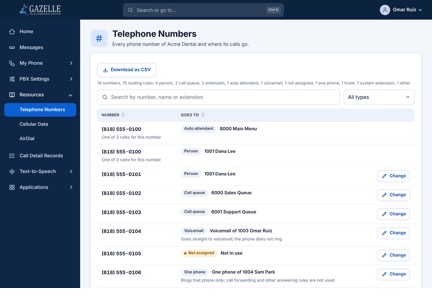
Column | Meaning |
Number | The telephone number. |
Goes to | Where calls to this number go: a label with the kind of destination, then its extension and name. |
Change | Opens the panel to send the number somewhere else. |
Above the list, one line counts your numbers and says how many go to each kind of destination.
Where a number can go
Label | Meaning |
Person | The number rings that person's extension. |
Auto attendant | The caller hears the menu of that auto attendant. |
Call queue | The caller joins that call queue. |
Outside number | Callers are sent on to an outside telephone number. Nothing rings on your phone system. |
Voicemail | The call goes straight to that person's voicemail. The phone does not ring. |
One phone | The number rings one phone of that person only. Call forwarding and the person's other answering rules are not used. |
Not assigned | The number is on your account but not in use. Callers hear that it is not in service. |
Trunk, System extension, Extension, Other | The number goes to equipment or to a special arrangement that GazelleTel set up. Ask GazelleTel support before you change one of these. |
A number with more than one rule
A number can have several rules, for example one for office hours and one for the night. Such a number appears once for each rule, with the note "One of 2 rules for this number". It has no Change button: ask GazelleTel support to change it.
Find a number
To do this | Do this |
Find one number | Type the number in the search box. Any way of writing it works: 818-555-0104, (818) 555-0104 or 8185550104. Part of a number works too. |
Find the numbers of a person, auto attendant or call queue | Type the name or the extension in the search box. |
Show one kind of destination only | Choose it in the list beside the search box, for example Call queue. The list shows how many numbers each kind has. All types shows everything again. |
Sort the list | Select the column heading Number or Goes to. Select it again to sort the other way. |
The list changes while you type. If nothing matches, the page says "No numbers match."
Download the list
Select Download as CSV. You get a file you can open in Excel or Google Sheets, with these columns: Number, Digits, Goes to, Type, Extension and PBX application. The file holds the whole list, whatever you typed in the search box.
Change where a number goes
- Find the number and select Change on its line. A panel opens under the line. It says where the number goes now.
- Choose where the number should go:
Choice | What to fill in |
A person, auto attendant or call queue | Choose one from the list. The list is grouped: People, Auto attendants, Call queues. |
An outside phone number | See "Forward a number to an outside number" below. |
Nowhere: take the number out of use | Nothing. The number stays on your account, but callers hear that it is not in service. |
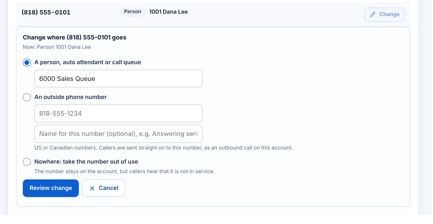
- Select Review change. The panel says the change in words, for example: "Send calls for (818) 555-0101 to 6000 Sales Queue (call queue)?"
- Check it, then select Change it now. To change your choice, select Back. To leave the number as it is, select Cancel.
- The page loads again with a message at the top, for example: "(818) 555-0101 now goes to: Call queue 6000 Sales Queue. It was: Person 1001 Dana Lee."
The change takes effect right away: the next call to the number goes to the new place.
If the page shows no Change buttons
If no line has a Change button and the page says "To change where a number goes, contact GazelleTel", changes are switched off for your organization. You can still read, search and download the list. Ask GazelleTel support to make the change, or to switch changes on.
Forward a number to an outside number
Use this to send every call for one of your numbers to a telephone number outside your phone system, for example an answering service or a mobile phone.
- Select Change on the number's line.
- Select An outside phone number.
- Type the 10-digit number, area code first, for example 818-555-0199.
- Optional: type a name for this number, for example "Answering service". The name helps you find the number again later.
- Select Review change, check the sentence, then select Change it now.
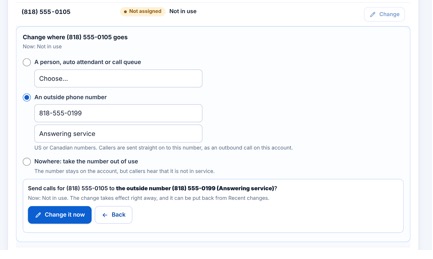
The line then shows Outside number and "Forwarded to (818) 555-0199". Callers are sent straight on to that number. Nothing rings on your phone system.
Good to know about forwarding:
- Only US and Canadian numbers are accepted. International numbers, 900 and 976 numbers and some Caribbean area codes are refused. For any other number, contact GazelleTel support.
- A forwarded call is an outbound call on your account. Each caller who is sent on uses your phone service the same way as a call you place yourself.
- To stop forwarding, select Change on the number again and choose a person, an auto attendant or a call queue.
- If the choice An outside phone number is not there, forwarding is not offered to your organization. Ask GazelleTel support.
Saved outside numbers
The portal remembers the outside numbers your organization has forwarded to. The next time you forward a number, choose one under Saved numbers in the panel and you do not have to type it again.
The saved numbers are listed at the foot of the page under Saved outside numbers, with their name, the date they were last used and by whom. Remove takes a number off this list. It does not change any of your telephone numbers.
Put a change back
Every change made on this page is listed under Recent changes, with the time, the number, what it was changed from and to, and who changed it. The time is shown in UTC, not in your local time.
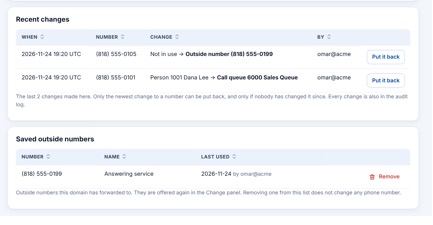
- Find the change under Recent changes.
- Select Put it back. The page asks, for example: "Put (818) 555-0105 back to: Not in use?"
- Select Yes, put it back.
The number goes back to exactly where it went before. The page confirms it with a message at the top.
Only the newest change to a number can be put back, and only if nobody has changed the number since. A change that cannot be put back has no Put it back button; use Change on the number's line instead.
Good to know
- A change takes effect right away. There is no waiting time and nothing to restart. Call the number from an outside phone to check it.
- The portal checks every change. After a change it reads the number from the phone system again. If the phone system did not take the change, the page tells you and nothing is recorded as done.
- Think before you take a number out of use. Callers to that number hear that it is not in service. The number stays on your account and can be sent somewhere again at any time.
- Sending a number to a person follows that person's answering rules. If the person forwards calls or sends them to voicemail, calls to the number do the same.
- Numbers the phone system has switched off are not listed. If a number you expect is missing, ask GazelleTel support.
- The portal keeps a record of every change: the number, what changed, who changed it and when.
What this page does not do
Task | Where it is done |
Get a new telephone number, or give a number up | Ask GazelleTel support. |
Move a number to GazelleTel from another provider (porting) | Ask GazelleTel support. |
Change a number that has more than one rule, for example by time of day | Ask GazelleTel support. |
Send a number straight to voicemail, to one phone only or to a trunk | Ask GazelleTel support. |
Forward to a number outside the US and Canada | Ask GazelleTel support. |
The caller ID your users show when they call out | Ask GazelleTel support. |
What callers hear in an auto attendant | PBX Settings > Auto Attendants; see Manage your auto attendants in the PBX Portal (Office Managers). |
Getting help
Contact GazelleTel support at Support@GazelleTel.com or 818-493-7500. Tell us the telephone number, where it should go, and the message the page showed.
Related articles: What is the PBX Portal for Office Managers? and Manage your users in the PBX Portal (Office Managers).