
Music-on-Hold is what your callers hear while they are on hold. In the PBX Portal, an Office Manager can see the hold music of the organization, listen to each track, put the tracks in the order they should play, rename or remove a track, add a track from the library GazelleTel provides, and upload a track of the organization's own.
This article is for Office Managers. The screenshots show a sample organization with made-up names; your own list will look different.
Open Music-on-Hold
- Sign in at https://www.phonesystemadmin.com with the same login and password as the GazelleTel Hosted PBX portal.
- In the menu on the left, select PBX Settings, then Music-on-Hold.
The menu PBX Settings is shown to Office Managers only. If you do not have it, your login is not an Office Manager login; ask GazelleTel support.
The page at a glance
The page has three parts, from top to bottom.
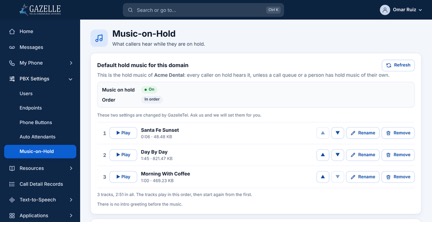
Part | What it is for |
Default hold music for this domain | The tracks your callers hear now, in the order they play, and two settings: Music on hold (On or Off) and Order (In order or Random). |
Add from the GazelleTel library | Music GazelleTel provides. Listen to a track and add it to your list. |
Upload your own | Add a WAV or MP3 file of your own to your list. |
This is the hold music of your whole organization: every caller on hold hears it, unless a call queue or a person has hold music of their own.
Under the list, the page tells you how many tracks there are, how long they are together, and how they play. It also tells you whether an intro greeting is played once before the music.
Refresh reads the list from the phone system again. Use it if somebody else may have changed the hold music while your page was open.
The two settings at the top
Setting | Meaning |
Music on hold: On | Callers on hold hear the tracks on the list. |
Music on hold: Off | Callers on hold hear silence, whatever is on the list. The page shows a warning. |
Order: In order | The tracks play from the first to the last, then start again from the first. |
Order: Random | The tracks play in a random order. |
If there is a button beside a setting, you can change it yourself. If the page says "These two settings are changed by GazelleTel", ask GazelleTel support and we will set them for you.
Your hold music list
Each line of the list is one track. It shows the track's place in the playing order, its name, its length and its size.
Button | What it does |
▶ Play | Plays the track in your browser, as the phone system has it. Select it again to stop. |
▲ and ▼ | Move the track one place up or down in the playing order. |
Rename | Changes the name shown on the list. Callers do not hear the name. |
Remove | Takes the track off your hold music. The portal asks first. |
Change the order
- Find the track you want to move.
- Select ▲ to move it one place up, or ▼ to move it one place down.
- Wait for the message, for example: "Day By Day" is now number 2.
A move takes a few seconds, because the portal sends both tracks to the phone system again. On the first track ▲ is greyed out, and on the last track ▼ is greyed out.
Rename a track
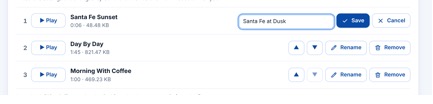
- Select Rename on the track's line.
- Type the new name (60 characters at most).
- Select Save, or press Enter. To leave the name as it was, select Cancel or press Esc.
Remove a track
- Select Remove on the track's line.
- The line asks "Remove this track from the hold music?" Select Yes, remove. To keep the track, select Cancel.
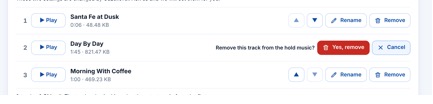
The tracks after it move up one place, so the list stays numbered 1, 2, 3.
A track from the GazelleTel library can be added again at any time. The portal does not keep a copy of a track you uploaded, so keep your original file in case you want it back.
If the list is empty
The page says "No tracks yet." Your organization then has no hold music of its own, and callers on hold hear the phone system's standard music. Add a track from the library or upload one, as described below.
Add a track from the GazelleTel library
The library is music GazelleTel provides for hold music. Each track shows its name and its length.
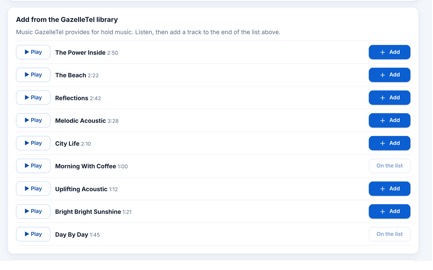
- Scroll to Add from the GazelleTel library.
- Select ▶ Play to listen to a track. Select it again to stop.
- Select Add on the track you want.
- Wait for the message, for example: "Morning With Coffee" was added. It plays after the tracks already on the list.
The track goes to the end of your list. To put it somewhere else, use ▲ on its line in the list.
A track that is already on your list shows On the list in place of Add.
The tracks in the library have been prepared for the telephone: they sound on the page the way they will sound on a call, and they all play at the same loudness.
Upload your own track
Use this for music your organization owns or has licensed, or for a recording of your own, such as a message about your opening hours or your services.