
PBX Settings → Users in the portal at https://www.phonesystemadmin.com lists every user of your organization by extension. As an Office Manager you open a user to change their name and e-mail, their login and scope, their password, their voicemail PIN, and their voicemail settings, and to see the phones on their extension.
What you change here is changed on the phone system itself, straight away. Changing users is switched on for your organization by GazelleTel. If the page says "Changes to users are made by GazelleTel", you can open users and see their details and phones, but not save; contact support to have it switched on.
Open Users and read the list
- Sign in at https://www.phonesystemadmin.com.
- In the menu on the left, select PBX Settings, then Users.
The list shows every user of your organization, one line each.
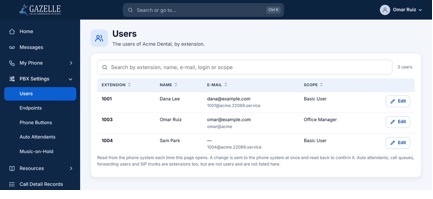
Column | What it shows |
Extension | The user's extension number |
Name | First and last name, as coworkers see it in the directory and on their phones |
The user's e-mail address, with their login name under it when that is something else | |
Scope | The user's level of access: Basic User, Office Manager and so on (see Sign-in below) |
- Search. Type in Search by extension, name, e-mail, login or scope to narrow the list.
- Sort. Select a column heading to sort by it.
- Open. Select Edit at the end of a line (or View where you cannot change the user).
Auto attendants, call queues, forwarding users and SIP trunks also have extensions, but they are not users and are not listed here.
The screenshots in this article show a sample organization with made-up users.
Open a user
Selecting Edit opens the user under the list, headed with their extension and name. It has five parts, each with its own Save button, so you change one thing at a time:
- Name and e-mail
- Sign-in: login name and scope
- Change password
- Voicemail: PIN, voicemail to e-mail and operator forward
- Phones: what is on the extension
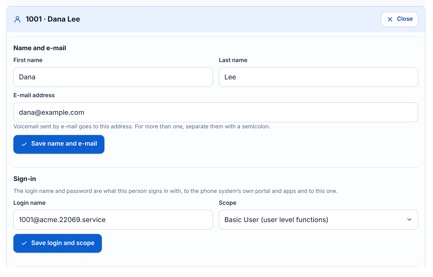
After a save, a green note confirms it, for example "Saved 1001 (Dana Lee)". The portal reads the user back from the phone system first, so if the phone system did not keep a change, the note says which one. Close at the top right closes the user.
Name and e-mail
Use this when someone's name changes, when a new person takes over an extension, or to correct an e-mail address.
- Change First name, Last name or E-mail address.
- Select Save name and e-mail.
- The name is what coworkers see in the directory and on their phones.
- The e-mail address is where the user's voicemail is e-mailed, and where a password reset code is sent. For more than one address, separate them with a semicolon.
Sign-in: login name and scope
The login name and password are what the person signs in with: to this portal, to the GazelleTel Hosted PBX portal and to the GazelleTel apps.
Login name
- Type the new Login name. It is letters, digits, dot, dash or underscore, usually followed by @ and your domain, for example jsmith@yourcompany.
- Select Save login and scope.
A login name must be unique on the phone system; the page tells you if the one you typed is taken. Tell the user their new login name, because the old one stops working and any session they have open in this portal is signed out.
Scope
The scope is the user's level of access. Choose it under Scope, then select Save login and scope.
Scope | What it means | In this portal |
No Portal | Cannot log in to web services | Cannot sign in |
Simple User | User level, voicemail only | Signs in and sees their own extension |
Basic User | User level functions | Signs in and sees their own extension |
Office Manager | Domain level admin | Sees and manages the whole organization. Given by GazelleTel only |
These are the scopes you can give. A user may hold another scope that GazelleTel set, such as Call Center Agent or Site Manager; the page shows it and does not let you change it.
To keep someone out of the portal and the apps without removing their extension, set their scope to No Portal.
Change a user's password
Use this when someone has forgotten their password and cannot reset it themselves, or when a new person takes over an extension.
- Under Change password, type the New password, then type it again in New password again.
- Select Change password.
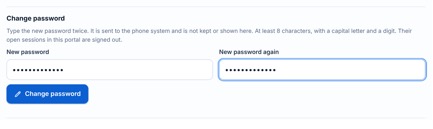
- A password is at least 8 characters, with a capital letter and a digit.
- The password is sent to the phone system and is not kept or shown in the portal. Nobody, including you, can look it up afterwards.
- Any session the user has open in this portal is signed out. They sign in again with the new password, which also works for the GazelleTel Hosted PBX portal and apps.
- Give the user the new password in person or by phone, not by e-mail, and ask them to change it under My Profile.
Users can also reset their own password with Forgot your password? on the sign-in page, as long as their user has an e-mail address.
Voicemail PIN
The PIN is what the user keys in to check voicemail from a phone. The Voicemail part says whether a PIN is set and has three buttons.
Button | What it does |
Show | Shows the user's PIN. Hide puts it away again. Each time a PIN is shown, it is recorded in GazelleTel's log with your name |
Change | Opens New PIN (4 to 10 digits). Type the new PIN and select Save PIN |
Remove | Asks you to confirm, then removes the PIN |
Think before removing a PIN: without one, the user's voicemail may be open to anyone who dials in to it, or the phone system may refuse to remove it. Changing it is nearly always the better choice.
Voicemail to e-mail and operator forward
Both are in the Voicemail part, under the PIN, and are saved together with Save voicemail settings.
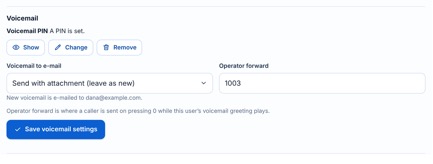
Voicemail to e-mail
Choose what the user gets by e-mail when someone leaves them a voicemail.
Choice | What the user gets |
None | No e-mail |
Send with hyperlink | An e-mail with a link to the message |
Send with brief hyperlink | A short e-mail with a link to the message |
Send with attachment (leave as new) | An e-mail with the recording attached. The message stays new in their Inbox |
Send with attachment (move to saved) | An e-mail with the recording attached. The message is moved to Saved |
Send with attachment (move to trash) | An e-mail with the recording attached. The message is moved to Trash |
The line under the list says which address it goes to. That is the e-mail address in Name and e-mail; set one there first if the user has none.
Operator forward
Operator forward is where a caller is sent on pressing 0 while this user's voicemail greeting plays, typically your receptionist or main menu.
- In Operator forward, type an extension of your organization (a person, an auto attendant or a call queue) or a 10-digit US or Canadian telephone number.
- Select Save voicemail settings.
Leave it blank and save for none: the caller stays in the user's voicemail. It cannot be the user's own extension.
Users can set both of these for themselves under Messages → Voicemail Settings, along with their greetings and Copy to Extension, which are not on this page.
Phones on the extension
The Phones part lists everything registered to the user's extension: desk phones with their make, model and address, and the mobile and desktop apps. Each shows Online when it is connected now, or when it last registered.
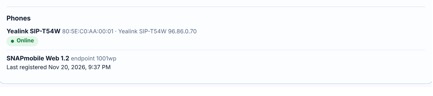
This part is for looking only. It is the quickest way to answer "is their phone connected?" To set a desk phone's buttons, use PBX Settings → Phone Buttons; for every phone of your organization in one list, use PBX Settings → Endpoints.
What you cannot change here
You cannot | Why, and what to do |
Change another Office Manager | The page opens them to look at only, and says "Another domain admin is changed by GazelleTel, not from here." Ask support |
Make someone an Office Manager | Office Manager is not among the scopes you can give. Ask support |
Change your own login name or scope | It is the login you are signed in with, so you cannot lock yourself out by mistake. Ask support |
Change a scope GazelleTel set (Call Center Agent, Site Manager and the like) | The page shows the scope and leaves it alone. Ask support |
Add or remove a user, or change an extension number | Not done in the portal. Ask support |
See a user's password | It is never kept or shown. Set a new one |
Your own name, e-mail address, password and PIN are also under My Profile (select your name at the top right).