
The PBX Portal is GazelleTel's website for running your organization's phone service yourself: https://www.phonesystemadmin.com. As an Office Manager you use it to look after your users, their phones, your auto attendants and greetings, your telephone numbers and your call records, without calling support for everyday changes.
Every user of your phone system can sign in to the same portal. They see only their own extension; you see your whole organization.
Who is an Office Manager
You are an Office Manager in the portal when your phone system user has the scope Office Manager. The portal shows this as Domain Manager under your login name, at the bottom of the menu. GazelleTel can also give this access to a user with another scope.
Sign in at https://www.phonesystemadmin.com with the same login and password you use for the GazelleTel Hosted PBX portal. There is no separate account. You land on Overview: your users, auto attendants, call queues, numbers, how many phones are online, and two days of calls at a glance, with anything that needs attention called out at the top.
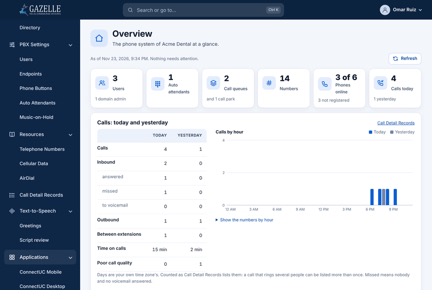
The screenshot shows a sample organization with made-up users and calls.
What you can manage
Menu | Page | What you do there |
Home | Overview | See the state of your phone system at a glance, and what needs attention |
PBX Settings | Users | See every user by extension. Change a user's name and e-mail, login name and scope, password, voicemail PIN, voicemail to e-mail and operator forward |
PBX Settings | Endpoints | See every phone with its extension, make and model, and whether it is online now or when it last was |
PBX Settings | Phone Buttons | See each Yealink desk phone drawn with its buttons, set what each button does, and use templates to put one set of buttons on many phones |
PBX Settings | Auto Attendants | See your recorded menus and what each key does, change them in a guided designer, and type the greeting to have it read aloud |
PBX Settings | Music-on-Hold | Choose what callers hear on hold: add tracks from the GazelleTel library or upload your own, and set their order |
Resources | Telephone Numbers | See every number of your organization and where its calls go, move a number to another extension, and download the list |
Resources | Cellular Data | See the cellular data SIMs that keep your phones or lines connected |
Resources | AirDial | See your AirDial units and the lines they keep in service |
Call Detail Records | See every call of your organization in the last seven days, with search, filters and call quality | |
Text-to-Speech | Greetings | Make greetings for users, auto attendants and call queues by typing the words and choosing a voice |
Text-to-Speech | Script review | Read the words now playing on each greeting, change a voice, and download the scripts |
Saving changes to auto attendants and to phone buttons is something GazelleTel switches on for Office Managers. Until it is on, you can look at those pages but not save; ask support if you need it. Text-to-Speech, Cellular Data and AirDial appear with content only when your organization has those services.
What your users can do for themselves
Every user with a scope other than No Portal can sign in and look after their own extension, which takes routine requests off your desk:
- Messages: listen to, save, forward and delete their voicemail.
- Voicemail Settings: their greetings and recorded name, voicemail to e-mail, Operator Forward and Copy to Extension.
- My Phone: the buttons and the directory of their own desk phone.
- Call History: their own calls for the last seven days.
- My Profile: their name, e-mail address, password and voicemail PIN.
- Applications: how to get the ConnectUC mobile and desktop apps.
You have all of these for your own extension as well. To keep a user out of the portal, set their scope to No Portal on the Users page.
What stays with GazelleTel
Some things are deliberately not in an Office Manager's hands. Ask GazelleTel support for these:
- Making another user an Office Manager, or changing a user who already is one. You manage the users under you.
- Adding or removing users, phones, telephone numbers, call queues and trunks.
- Giving a number more than one destination (by time of day, for example), or sending it straight to voicemail, a single phone or a trunk. You can see these and move a number to an extension.
- Forwarding to numbers outside the US and Canada.
- Activating or changing cellular SIMs and AirDial units. You can see how each is doing.
- Calls older than seven days, and a detailed analysis of a problem call.
If you are not sure whether something can be done in the portal, ask; the answer is often a setting GazelleTel can switch on for you.
Good to know
- Changes are real and immediate. The portal changes the phone system itself. When you save a user's password, a greeting or a button, it is in effect straight away, or within a minute for a desk phone.
- The portal checks its work. After a save it reads the setting back from the phone system and tells you if the change did not take.
- Your organization only. You see and change your own organization's users, phones, numbers and calls, and nobody else's.
- Changes are recorded. GazelleTel keeps a log of who changed what and when, which helps when something needs to be traced or put back.
- Passwords stay private. The portal never shows a user's password; you can only set a new one. A voicemail PIN is shown only when you ask to see it, and that is recorded. Support will never ask you for a password.
- Any device. The portal works in a current browser on a computer, tablet or phone. Search or go to at the top (Ctrl K) jumps to any page.
- Signing out. Select your name at the top right, then Sign out. The portal also signs you out after 60 minutes without activity.
Getting help
Contact GazelleTel support at Support@GazelleTel.com or 818-493-7500. Say which page you were on and which user, phone or number