
Call History in the portal at https://www.phonesystemadmin.com lists the calls to and from your own extension over the last seven days: who called whom, when, for how long, how the call ended and how good the audio was.
You can narrow the list to one day, to one type of call such as missed calls, or to a name or number.
Open Call History
- Sign in at https://www.phonesystemadmin.com.
- Select Call History in the menu on the left.
The page opens on your calls from the last seven days, newest first, with the number of calls shown above the table.
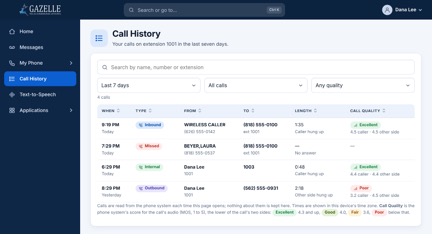
The screenshots in this article show a sample user, Dana Lee at extension 1001, with made-up calls.
Read the list
Each line is one call.
Column | What it shows |
When | The time of the call, and the day under it |
Type | Inbound (someone outside called you), Outbound (you called outside), Internal (between extensions), Missed, or Voicemail (the caller went to your voicemail) |
From | Who made the call: the name when the phone system has one, and the number or extension |
To | The number or extension that was called. For a call to your direct number, your extension is shown under it |
Length | How long the call lasted, and under it how it ended: Caller hung up, Other side hung up, No answer, Busy, Caller gave up before it was answered, or Answered on another phone |
Call Quality | How good the audio was: Excellent, Good, Fair or Poor, with the score for each side of the call |
Select a column heading to sort the list by that column. Select it again for the reverse order.
Times are shown in the time zone of the device you are using.
Narrow the list
The box and the three lists above the table work together. The line under them says how many calls match, for example "1 of 4 calls match".
- Search by name, number or extension. Type any part of a name or number. The ✕ at the end of the box clears it.
- Day. Last 7 days, Today, Yesterday, or one of the earlier days of the week.
- Type of call. All calls, Inbound, Outbound, Internal, Missed, or Went to voicemail.
- Quality. Any quality, Excellent, Good, Fair, Poor, Fair or poor, or Not measured.
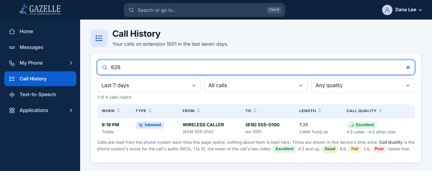
If there are more calls than fit on the page, Show more at the bottom of the table shows the rest.
Understand Call Quality
Call Quality is the phone system's score for the sound of the call, from 1 to 5 (known as MOS). Each side of the call gets a score, and the label goes by the lower of the two.
Label | Score | What it usually sounds like |
Excellent | 4.3 and up | Clear |
Good | 4.0 to 4.3 | Clear, with the odd blemish |
Fair | 3.6 to 4.0 | Noticeable choppiness or delay |
Poor | Below 3.6 | Hard to follow: words cut out or arrive late |
A dash means the call was not measured, for example a call nobody answered. The two numbers under the label are the score for the caller's side and for the other side, which shows which end had the trouble.
One poor call is usually a passing problem on the network. If you see poor calls regularly, tell GazelleTel support and include the dates and times from this page.
Common things to look up
To find | Do this |
Calls you missed today | Day: Today, type: Missed |
Everything from one caller | Type part of their name or number in the search box |
Who went to your voicemail | Type: Went to voicemail |
The number of someone who called yesterday | Day: Yesterday, type: Inbound, then read the From column |
Calls with bad audio, to report them | Quality: Fair or poor |
Your longest calls this week | Select the Length heading until the longest is at the top |
Good to know
- Seven days. Call History goes back seven days. For an older call, ask your office's phone administrator or GazelleTel support.
- Your extension only. You see calls to and from your own extension, not your coworkers' calls.
- Always current. The calls are read from the phone system each time you open the page. A call that just ended can take a moment to appear; reload the page to read the list again.
- A list, nothing more. The page shows that a call happened. It does not play recordings, and voicemail messages are under Messages.