
Your Yealink desk phone has its own directory of names and numbers, the one you open with the phone's Directory key to dial by name. You can manage it from My Phone → Directory in the portal at https://www.phonesystemadmin.com: add and edit contacts in a table, import them from a spreadsheet, then save and send them to the phone.
This is your own phone's directory. It is separate from the company directory of your coworkers' extensions.
Open the directory
- Sign in at https://www.phonesystemadmin.com.
- In the menu on the left, select My Phone, then Directory.
If you have one desk phone, its directory opens straight away. If you have more than one, choose the phone from the list first; Your phones at the top takes you back to the list. Each phone has its own directory.
The screenshots in this article show a sample user, Dana Lee at extension 1001, with made-up contacts.
Add, change and remove contacts
The directory is a table you type straight into. Each contact has a Name and up to three numbers: Office, Mobile and Other.
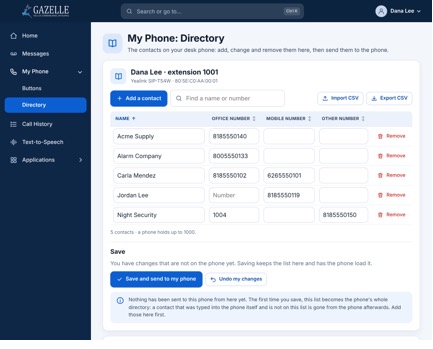
- Add. Select Add a contact. An empty line appears at the top; type the name and at least one number.
- Change. Select any name or number in the table and type over it.
- Remove. Select Remove at the end of the line. A note confirms it and offers Put it back if you change your mind.
Type a number the way you would dial it from your phone: an extension such as 1004, or a full telephone number. Spaces, dashes and brackets are taken out for you.
A field with a problem is outlined; point to it to see why. The usual reasons are two contacts with the same name, or letters in a number. Fix those before saving.
Nothing you do in the table reaches your phone until you save (see below).
Find and sort
- Find. Type part of a name or number in Find a name or number. The table shows only the matching contacts; clear the box to see them all again.
- Sort. Select a column heading (Name, Office number, Mobile number, Other number) to put the list in order by that column. Select it again for the reverse order.
Import and export a list (CSV)
A CSV file is a plain list that Excel, Google Sheets and most address books can save and open.
Import
- Prepare a file with a column of names and one or more columns of numbers. The first line may name the columns: Name, Office, Mobile, Other.
- Select Import CSV and choose the file.
- The page says how many contacts it found and shows a few of them.
- Select Add to my list to add them to what you have, or Replace my list to use only the contacts in the file. Cancel leaves your list alone.
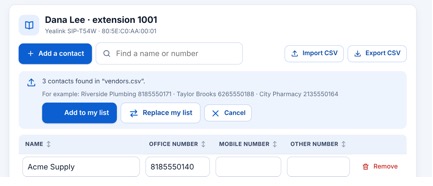
With Add to my list, a contact whose name is already on your list gets the numbers from the file, and a column the file does not have is left as it was. Lines with no name or no number are left out.
Importing only changes the table. Save to send the result to your phone.
Export
Select Export CSV to download your list as a file, for example to edit it in a spreadsheet or keep a copy.
Save and send to your phone
- Under Save, select Save and send to my phone.
- A green note confirms: "Saved. Your phone was asked to load the directory."
- The box under the button shows progress: first "Waiting for the phone to load it", then "Your phone loaded this directory on" with the date and time.
Your phone usually has the new directory within a minute. If you are on a call, it waits until the call ends. You do not need to restart the phone.
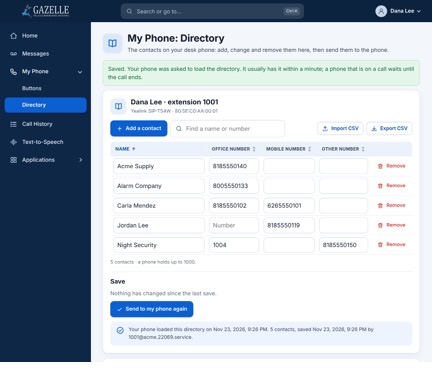
The list in the portal is the phone's whole directory. The first time you save, a contact that was typed into the phone itself and is not on your list is gone from the phone afterwards. Add those contacts to the list here before your first save.
If you change your mind before saving, Undo my changes puts the table back to the last saved list. If the phone has not loaded the directory after a few minutes, check that it is switched on and connected, then select Send to my phone again.
Good to know
- On the phone. Press the phone's Directory key to look someone up and call them. When one of your contacts calls you, the phone shows their name.
- How many. A phone holds up to 1,000 contacts. The count is shown under the table.
- More than one phone. Each phone has its own list. When another of your phones already has one, the page offers to copy it.
- Help on the page. How the directory works, under the table, repeats the essentials.
If My Phone is not in your menu, your sign-in has no extension. If the page will not let you change or save the directory, your organization manages it for you; ask your office's p