
You can choose what the buttons on your own Yealink desk phone do from My Phone → Buttons in the portal at https://www.phonesystemadmin.com. The page shows a picture of your phone; you set each button, save, and the portal sends the new layout to the phone.
This works for the phone or phones assigned to your own extension. Mobile and desktop apps have no buttons to set and are not listed.
Open the button builder
- Sign in at https://www.phonesystemadmin.com.
- In the menu on the left, select My Phone, then Buttons.
If you have one desk phone, its buttons open straight away. If you have more than one, for example a desk phone and a second phone at home, the page lists them under Your desk phones. Select Set buttons beside the one you want. Your phones at the top takes you back to the list.
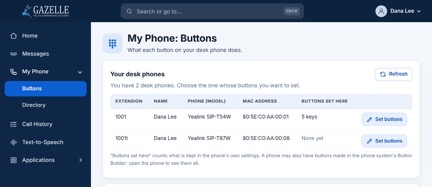
The screenshots in this article show a sample user, Dana Lee at extension 1001, with a Yealink T54W.
The page at a glance
The dark panel is a drawing of your phone: the numbered buttons down each side are the buttons beside your phone's screen, in the same places.
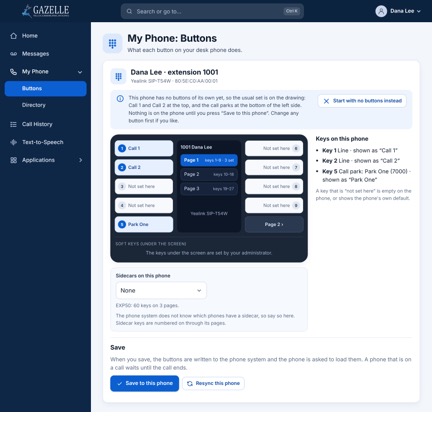
- A button with a name (Call 1, Park One) is set. The name is what your phone's screen shows beside it.
- Not set here means the portal puts nothing on that button. It is empty on the phone, or shows the phone's own default.
- Page 1, Page 2, Page 3 in the middle are the pages of buttons on phones that have more buttons than fit beside the screen. Select a page to see its buttons.
- Keys on this phone, on the right, lists every button that is set, in words.
If your phone has no buttons yet, the page starts you off with the usual set: two lines at the top (Call 1 and Call 2) and your office's call parks at the bottom of the left side. Keep it, change it, or select Start with no buttons instead. Nothing reaches the phone until you save.
Set or change a button
- On the drawing, select the button you want to set. A panel opens beside it: Key 3: what should this button do?
- Choose what the button should do. Each choice says what it is and what it is good for.
- Fill in what that choice asks for: a coworker under Who?, a number to dial, or a call park.
- Optionally type a Label on the screen, up to 24 characters. Leave it empty to use the usual name.
- Select Done. The drawing shows the button with its new label.
- Repeat for any other buttons, then save (see below).
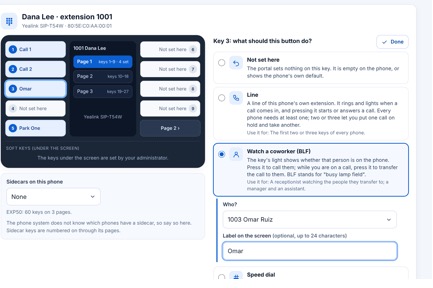
To clear a button, select it and choose Not set here.
Keep at least one Line button, usually two at the top. A line is how the phone makes and takes calls.
What a button can do
Choice | What it does | Good for |
Line | A line of your own extension. It rings and lights when a call comes in; press it to start or answer a call | The first two or three buttons of every phone |
Watch a coworker (BLF) | The light shows whether that person is on the phone. Press to call them, or, during a call, to transfer the call to them | A receptionist and the people they transfer to; a manager and an assistant |
Speed dial | One press dials a number: an extension, an outside number or a feature code | A supplier, a mobile phone, the alarm company |
Call park | A shared parking space for a call. Press it during a call to park the caller; the button lights on every phone that has it, and anyone can press it to pick the caller up | Passing a call across the office: "call for you on park 1" |
Voicemail | Calls your voicemail so you can listen to messages | Having voicemail beside the screen |
Visual Voicemail | Shows your voicemail as a list on the phone's screen. Pick a message to play, delete or send on | Seeing who called without listening through every message |
Do Not Disturb | Press once and the phone stops ringing; callers go where unanswered calls go, usually voicemail. Press again to switch it off | Meetings and focused work |
Call forward | Switches forwarding of your calls on and off, to the number you type, or the phone asks where | Sending calls to your mobile when you step out |
Transfer to a number | During a call, one press transfers the caller to the number you type | A number you transfer to all day |
Directory | Opens the phone's directory of names to dial from | Dialing by name |
Blank | The button does nothing and shows nothing | Keeping a button empty on purpose |
Your organization decides which of these you are offered, so your list may be shorter or longer than this one.
Save and send to your phone
Nothing changes on your phone until you save.
- Scroll to Save at the bottom of the page.
- Select Save to this phone.
- A green note confirms: "Saved. The phone was asked to load its new buttons."
Your phone loads the new buttons by itself, usually within a minute. If you are on a call, it waits until the call ends. You do not need to restart the phone.
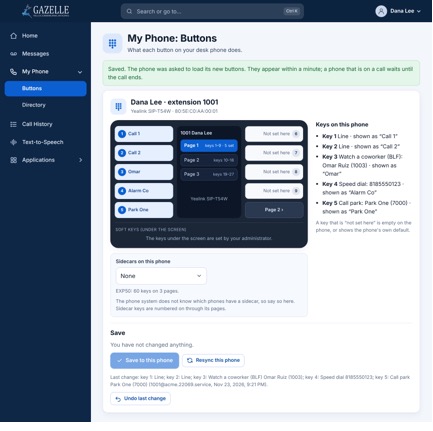
If the buttons have not appeared after a few minutes, select Resync this phone to ask the phone to load them again.
Good to know
- Undo. After a save, Undo last change under the Save button puts the buttons back as they were before it. The line above it says what the last change was and when.
- Buttons you cannot change. Some buttons are set by your administrator. Selecting one shows "Set by your administrator: it stays as it is, and cannot be changed here." It keeps working, and saving your other buttons does not disturb it.
- The keys under the screen. These soft keys are normally set by your administrator, and the page says so.
- Buttons with a dashed edge. These were made in the phone system itself. They work as shown. The first time you save, the page takes them over so all your buttons are kept in one place.
- Sidecars. If your phone has a panel of extra keys plugged into its side, choose it under Sidecars on this phone and its keys can be set the same way.
- New to phone buttons? The Start here guide, on the list of phones shown to people who have more than one, explains each kind of button in plain words.
If My Phone is not in your menu, your sign-in has no extension. If the page will not let you change or save buttons, your organization manages them for you; ask your office's phone administrator.