Your voicemail is under Messages in the portal at https://www.phonesystemadmin.com. Sign in with your GazelleTel login and password.
From Messages you can listen to, save, forward and delete your voicemail. From Voicemail Settings you can manage your greetings and recorded name, have voicemail sent to your e-mail, choose where a caller goes when they press 0, and copy your voicemail to colleagues. Everything here is for your own extension only.
Open your voicemail
- Sign in at https://www.phonesystemadmin.com.
- Select Messages in the menu on the left.
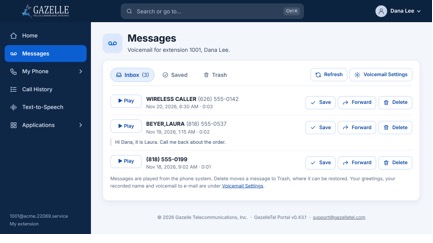
Your Inbox opens, with the number of new messages beside it. Saved and Trash are the other two folders. Refresh reads the folder again.
The screenshots in this article show a sample user, Dana Lee at extension 1001.
Listen to and manage messages
Each message shows the caller's name and number, when it was left and how long it is. Where the phone system has a transcription of the message, it appears under it.
Button | What it does |
Play | Plays the message in your browser. Select it again to stop |
Save | Moves the message from Inbox to Saved. In Saved, Move to Inbox puts it back |
Forward | Sends the message to a colleague's mailbox. Choose the person from the list, then select Forward |
Delete | Asks you to confirm, then moves the message to Trash |
A deleted message is not gone yet. Open Trash and select Restore to put it back in your Inbox, or Delete forever to remove it for good. Delete forever cannot be undone.
Open Voicemail Settings
On the Messages page, select Voicemail Settings, beside Refresh. The page has three parts, each covered below: Greetings, Voicemail to e-mail, and Operator and copies. The Messages button at the top returns you to your messages.
Greetings and recorded name
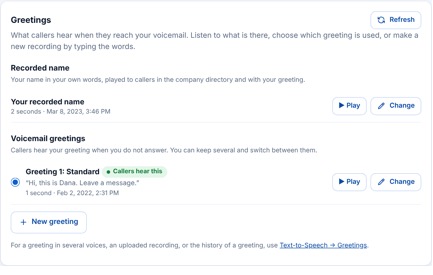
The Greetings card shows what callers hear when they reach your voicemail.
- Recorded name. Your name, played to callers in the company directory and with your greeting. Play lets you hear it; Change replaces it.
- Voicemail greetings. You can keep several. Play lets you hear each one. The greeting marked Callers hear this is the one in use.
Choose which greeting callers hear
Select the round button to the left of the greeting you want. The Callers hear this label moves to it once the phone system has made the change.
Make a greeting by typing the words
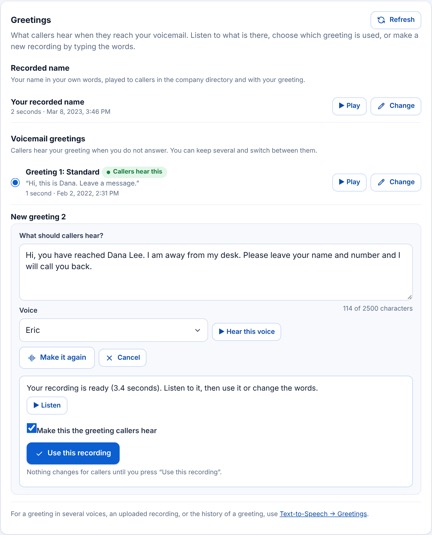
- Select New greeting, or Change beside a greeting or your recorded name.
- Under What should callers hear?, type the words, up to 2,500 characters.
- Choose a Voice. Hear this voice plays a sample.
- Select Make the recording.
- Select Listen to hear it. To try again, change the words or the voice and select Make it again.
- For a greeting, tick Make this the greeting callers hear if you want it in use straight away.
- Select Use this recording.
Nothing changes for callers until you select Use this recording. Cancel closes the form and leaves everything as it was.
If you do not see New greeting or Change, making recordings by typing is not switched on for your organization. You can still listen to your greetings and choose which one callers hear.
Voicemail to e-mail
The Voicemail to e-mail card sends each new voicemail to your e-mail as well as leaving it in your mailbox. Choose one of these under When someone leaves a voicemail, then select Save.
Choice | What you get |
None | No e-mail |
Send with hyperlink | An e-mail with a link to the message |
Send with brief hyperlink | A short e-mail with a link to the message |
Send with attachment (leave as new) | An e-mail with the recording attached. The message stays new in your Inbox |
Send with attachment (move to saved) | An e-mail with the recording attached. The message is moved to Saved |
Send with attachment (move to trash) | An e-mail with the recording attached. The message is moved to Trash |
The e-mail goes to the address shown beside Sent to. To use a different address, select Change it in My Profile. If no address is shown, add one in My Profile first.
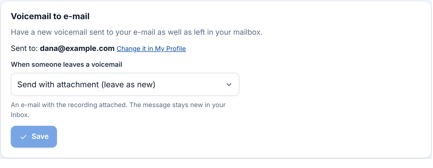
Operator Forward and Copy to Extension
The Operator and copies card has two settings and one Save button.
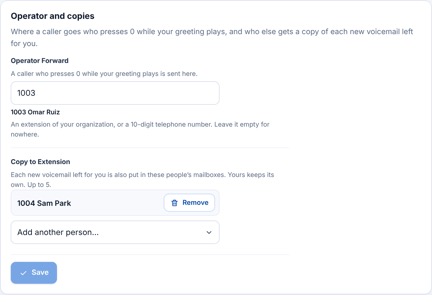
Operator Forward
A caller who presses 0 while your greeting plays is sent here, for example to your receptionist.
- In Operator Forward, type an extension of your organization, or pick one from the list that appears as you type. You can also type a 10-digit US or Canadian telephone number.
- Check the name shown under the field.
- Select Save.
Leave the field empty and save to send callers nowhere: they stay in your voicemail. Your own extension cannot be used.
Copy to Extension
Each new voicemail left for you is also put in these people's mailboxes. Your own mailbox still gets it.
- Under Copy to Extension, choose a colleague from Add a person.
- Add more if you need to, up to five in all.
- Select Save.
To stop copying to someone, select Remove beside their name, then Save.
If a field is greyed out with the note "This is set for you by your administrator", your organization manages that setting for you.
Change your voicemail PIN
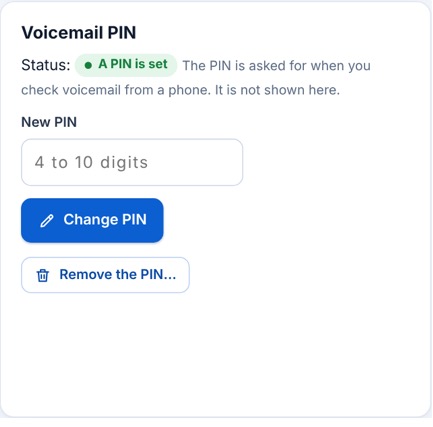
Your PIN is asked for when you check voicemail from a phone. It is not needed in the portal, and the portal never shows it.
- Select your name at the top right of the page, then My Profile.
- Go to Voicemail PIN.
- Type a New PIN of 4 to 10 digits.
- Select Change PIN.